Cloning Assets
Overview
Cloning creates a new asset with the same model, category, purchase details, and custom fields as an existing one. Use this when adding a batch of identical equipment — same make, same purchase, different serial numbers.
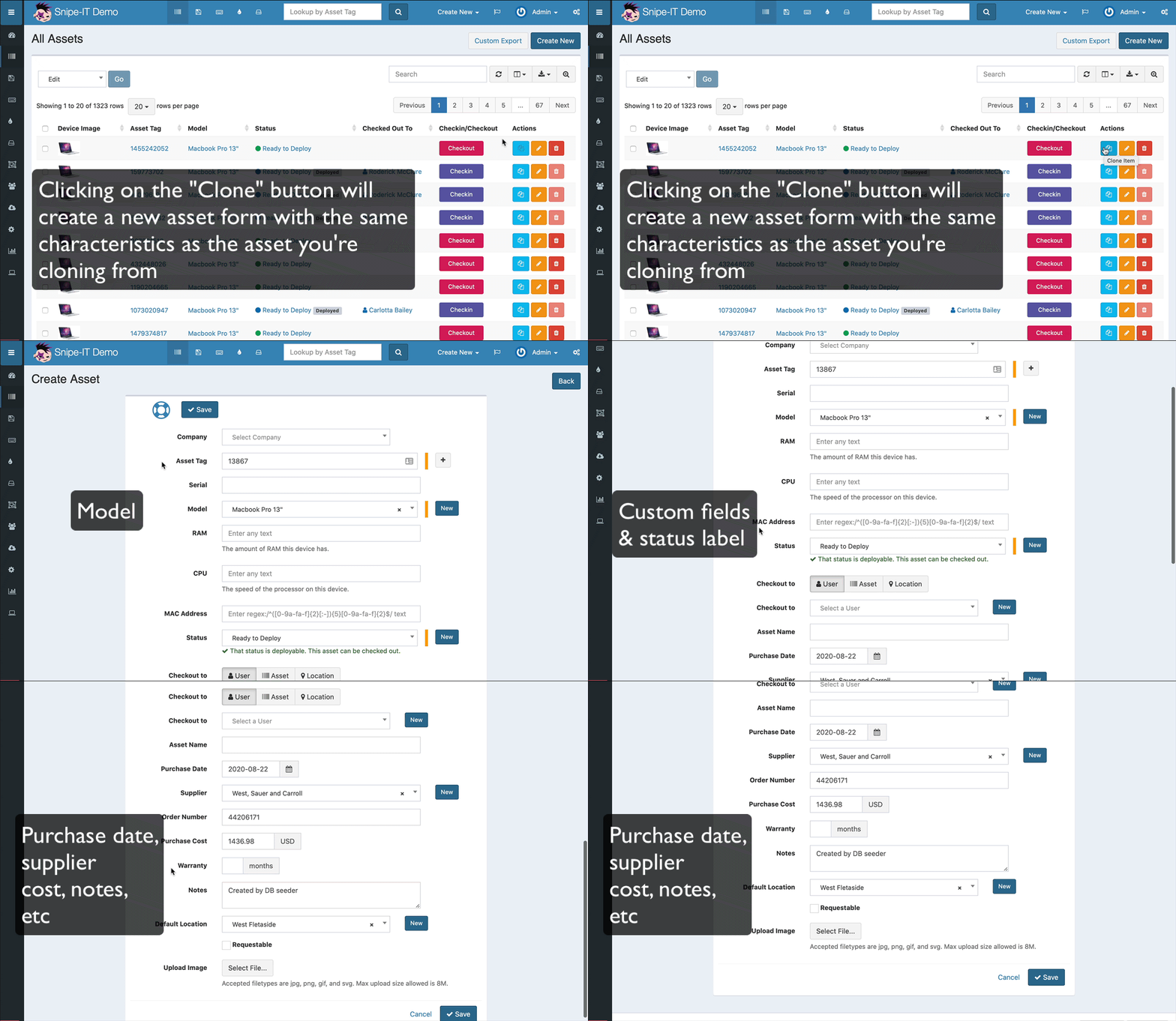
Cloning a Single Asset
- Go to Assets and find the asset you want to clone
- Click the Clone button in the action column
- A new asset form opens pre-filled with the same model, purchase cost, supplier, and notes
- Update the Asset Tag and Serial Number — these are unique per physical item and are NOT copied over
- Click Save
Images uploaded to the original individual asset are not cloned. Set generic model images at the Asset Model level so they carry across automatically.
Cloning Many Assets at Once
For large batches — e.g. 20 identical solar panels arriving together:
- Find one existing asset of that type
- Export it: use Column Selector to show all fields, then click Export
- In Excel, duplicate the row as many times as needed
- Increment the Asset Tag column for each row
- Fill in the unique Serial Number for each
- Leave ID blank — the system will assign new IDs
- Run a standard CSV Import (see Importing Assets)
If auto-incrementing is enabled in Admin > Settings > Asset Tags, you can leave the Asset Tag column out entirely and the system generates tags for you.